Installing and Using UpLync Softphone (Desktop - Windows)
UpLync Softphone allows you to use your computer as your business phone. You can make and receive calls, send messages, check voicemail, and manage your availability directly from your desktop.
Logging Into UpLync Softphone
- Install UpLync Softphone from the Microsoft Store
- Open the app and log in using the credentials or QR code you received via email from UpLync.
- Once logged in:
- A green indicator means you are ready to make and receive calls
- A red indicator means the app is not registered (Double-check your login details. If the issue continues, contact support@uplync.com.)
Navigating the App
The main navigation is located on the left side of the screen:

- Keypad – Make calls and access Quick Dial
- Contacts – Search and manage contacts
- History – View recent calls
- Messages – Send and receive text messages
- Toolbox – Access voicemail, recordings, and settings

Note: Some users may have a paired account, which includes both a desk phone and a softphone extension that work together. If you notice multiple extensions or slightly different behavior in certain features, this is expected. You can learn more here: Understanding Your Extensions (Paired Accounts).
Syncing Your Contacts
You can sync your Google or Office 365 contacts directly into the app.
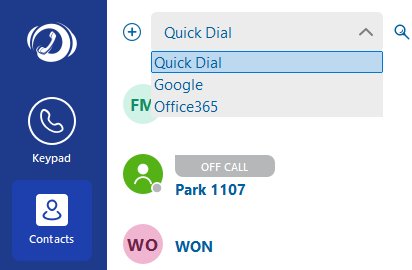
- Click the Contacts tab
- Click the drop-down menu at the top
- Select:
- Office 365
- Follow the prompts to sign in
Once connected, your contacts will appear in your contact list and can be used for calling and messaging.
Making a Call
There are a few ways to place a call.
Using the Keypad
- Click the Keypad tab
- Enter a phone number or extension
- Click the green call button
Using Contacts
- Click Contacts
- Select a contact
- Click the phone icon
Answering a Call
When you receive a call, click the green phone icon on your screen to connect.
During a Call
While on a call, you have several options available:
- Pause - Place the caller on hold
- Red Phone Icon - End the call
- DTMF - Open a keypad to enter selections in automated menus (e.g., “Press 1 for sales”)
- Merge - Combine it with another active call
- Add Call - Start a second call
- Attend– Speak to the recipient before completing the transfer
- Blind– Transfer the call to another user or number
Transferring a Call
You can transfer a call to another user or phone number in two different ways, depending on whether you want to speak with the recipient first.
Unattended Transfer
An unattended transfer sends the call directly to the other person without speaking to them first.
- While on a call, click Blind
- Enter the extension or phone number on the keypad
- Or select a contact from your list
- Click the green call button to complete the transfer
Attended Transfer
An attended transfer allows you to speak with the recipient before completing the transfer.
- While on a call, click Attend
- Enter the extension or phone number on the keypad
- Or select a contact from your list
- Speak with the recipient
- Click the green call button to complete the transfer
Transfer to Voicemail
You can transfer a call directly to the recipient's voicemail box without ringing the phone first.
- While on a call, click Blind
- Enter * followed by the extension number (e.g., *1001) on the keypad
- Click the green call button to complete the transfer
Messaging
You can send and receive text messages using your business number. Each message shows the name of the user who sent it, making it easy to track conversations across your team.
- Click the Messages tab
- Select an existing conversation or click Start Chat to start a new one
- Enter your message and send
Voicemail
- Click the Toolbox tab
- Select Visual Voicemail
From here you can:
- Listen to messages
- View voicemail transcriptions
- Record your name and unavailable or temporary greetings
- Manage your voicemail-to-email delivery settings
Call Recordings and Transcripts
- Click the Toolbox tab
- Select Call Recordings & Transcripts
From here you can:
- Play recorded calls
- View call details
- Read available transcripts
Managing Do Not Disturb and Call Routing
- Click the Toolbox tab
- Select Follow Me / DND
From here you can:
- Enable or disable Do Not Disturb
- Control how calls are routed to your devices
Note: Paired accounts may see additional options here, since settings can apply to your desk phone and softphone separately.
Messaging Settings and Auto-Replies
- Click the Toolbox tab
- Select Messaging Settings
From here, you can manage:
- Messaging preferences
- Automatic replies
- Reply templates
Audio Settings and Headset Setup
If you are using a headset or external microphone, you may need to confirm that the correct audio devices are selected.
- Click the Settings gear icon
- Click Sound
- Under Microphone, select your headset or preferred input device
- Under Speaker, select your headset or preferred output device
The app will usually detect your headset automatically, but if you are having audio issues, manually selecting the correct devices will resolve most problems.
Troubleshooting
- If you are unable to make or receive calls, check that your status indicator is green
- Make sure you are connected to Wi-Fi or cellular data
- Refer to the Help & FAQ section in the Toolbox tab
- If issues continue, contact support@uplync.com